
Raspberry Pi AI Hat+ 2 and Hailo Apps, What are they?
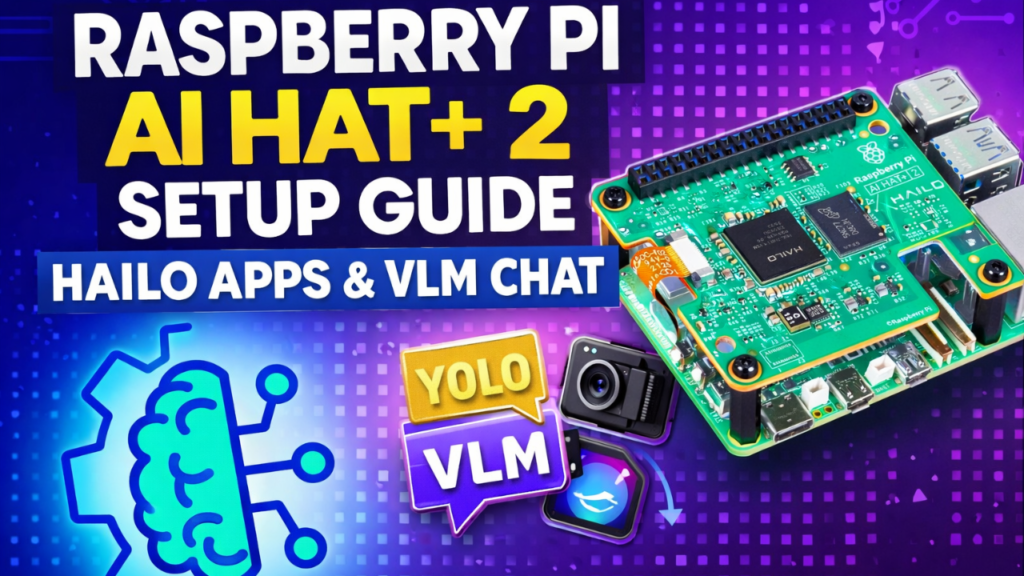
The Raspberry Pi AI Hat+ 2 brings powerful edge-AI processing to the Raspberry Pi 5 using the Hailo-10H accelerator. With up to 40 TOPS of performance, it can run real-time object detection, Vision-Language Models (VLM), Whisper speech-to-text, and lightweight LLM workflows.
The included Hailo Apps provide pre-built, optimized AI tools—such as YOLO object detection, VLM image-understanding chat, Whisper voice transcription, and even Ollama-style LLM interfaces—all running locally on the Raspberry Pi 5.
This guide combines everything you need—from system updates to running these advanced Hailo Apps—in one clean, beginner-friendly tutorial.
Step 1 - Enable PCIe Gen 3 - Text File
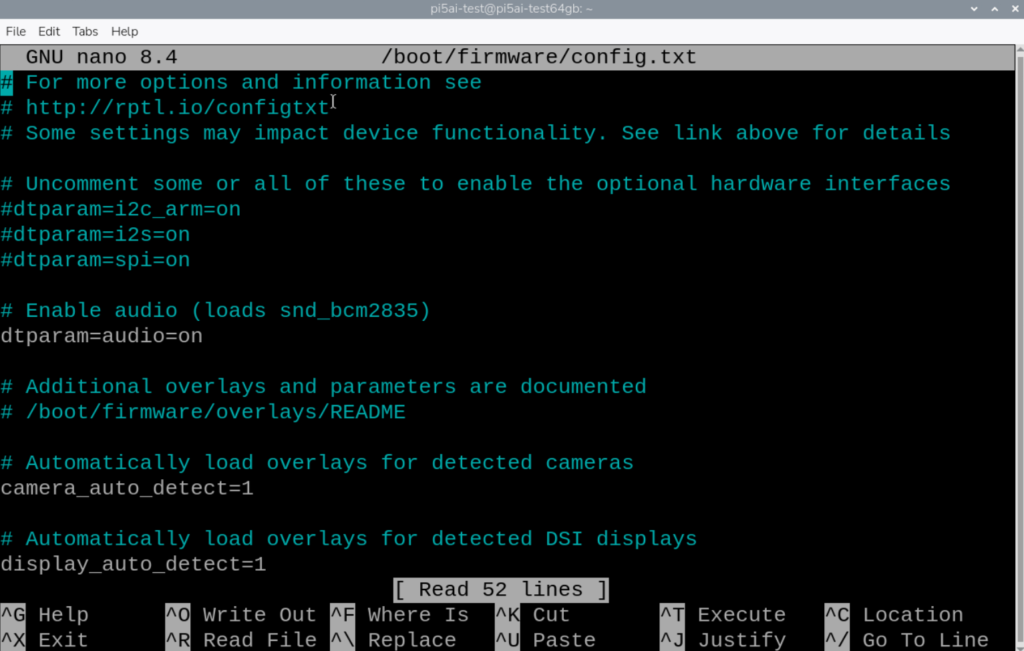
Enabling PCIe Gen 3 ensures maximum bandwidth for the AI accelerator.
sudo nano /boot/firmware/config.txt
Add this line:
dtparam=pciex1_gen=3
Save the file and reboot the system
sudo reboot now
Step 1 - Enable PCIe Gen 3 - Config Method
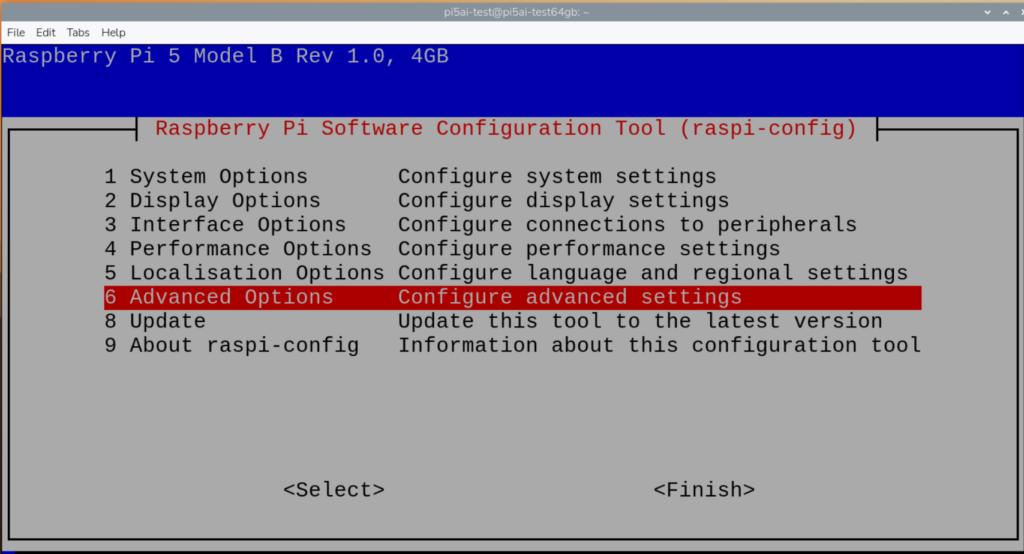
Enabling PCIe Gen 3 ensures maximum bandwidth for the AI accelerator.
sudo raspi-config
Go to option 6: Advanced Options.
Go to option A8: PCIe Speed.
Enable the speed and reboot.
Step 2 - Update System & Install Hailo Drivers
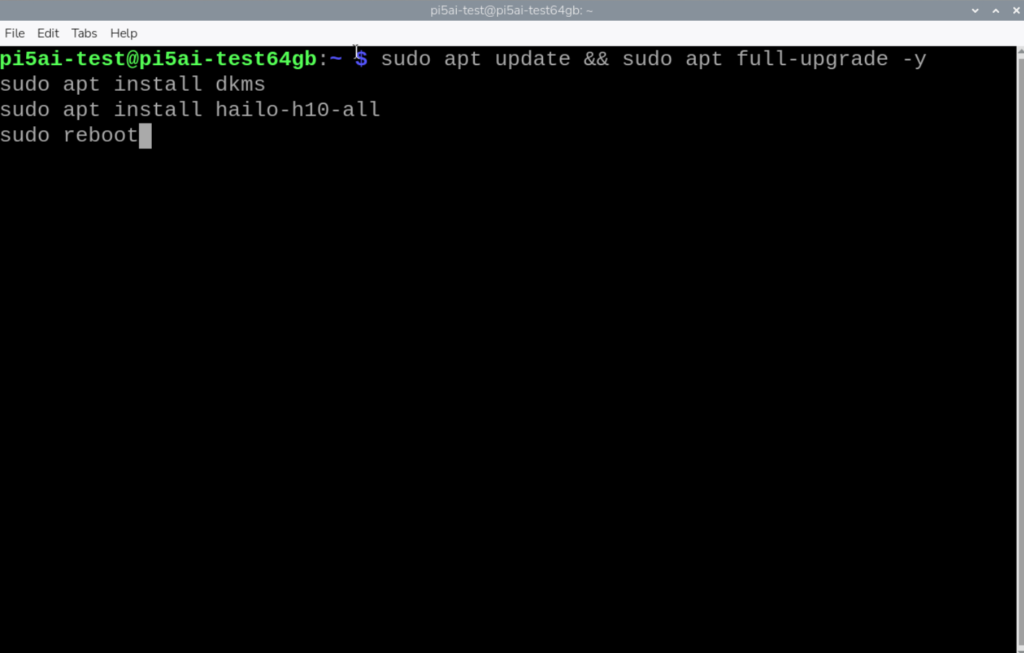
sudo apt update && sudo apt full-upgrade -y
sudo apt install dkms
sudo apt install hailo-h10-all
sudo reboot
Step 3 - Verify Your AI Hat+ 2 Installation
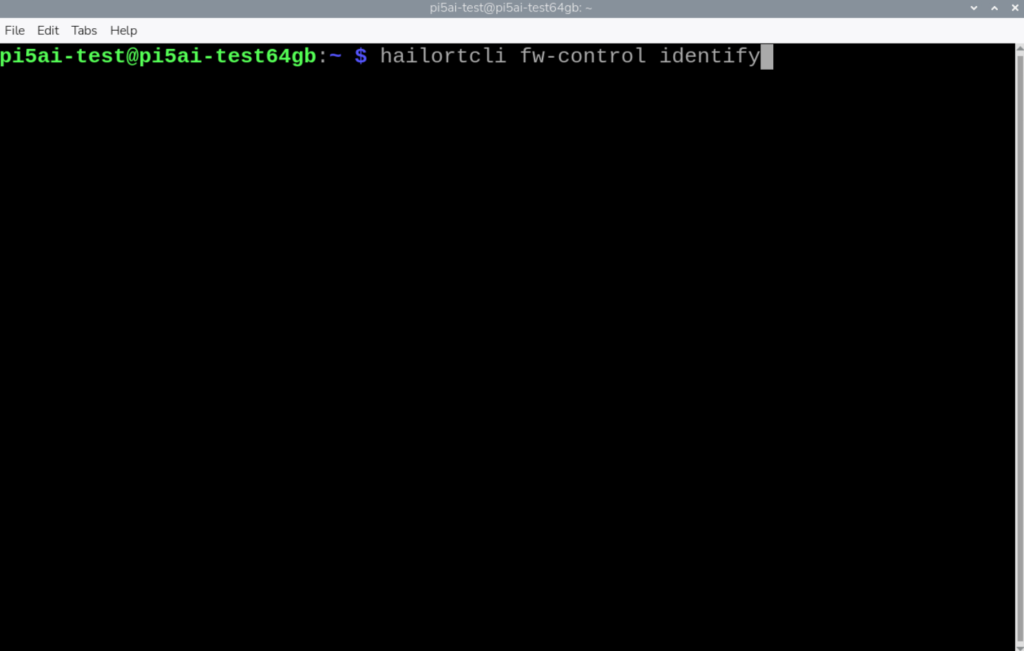
Check if the Hailo-10H chip is detected. If it prints device details — your installation is successful.
hailortcli fw-control identify
Step 4 - Install Camera Dependencies
If you are planning to run YOLO or VLM image tasks. Good default object detection. Works with USB cameras and the Raspberry Pi cameras.
sudo apt update
sudo apt install rpicam-apps
Test the camera:
rpicam-hello
Step 5 - Install Hailo Apps (Vision + GenAI)
The official Hailo Apps repo contains demos for:
YOLO Object Detection
Vision-Language Chat (VLM Chat)
Whisper Speech-to-Text
Ollama-style LLM interfaces
Clone the official repo and install:
git clone https://github.com/hailo-ai/hailo-apps.git
cd hailo-apps
sudo ./install.sh
source setup_env.sh
Test the camera:
rpicam-hello
Step 6 - Run YOLO Object Detection (Camera AI)
Add “–vflip” and/or “–hflip” to flip vertically and/or horizontally
Run “YOLOv6” object detection.
rpicam-hello -t 0 --vflip --hflip --post-process-file /usr/share/rpi-camera-assets/hailo_yolov6_inference.json
Run “YOLOv8” object detection.
rpicam-hello -t 0 --vflip --hflip --post-process-file /usr/share/rpi-camera-assets/hailo_yolov8_inference.json
The others can be found here:
Step 7 - Run Hailo VLM Chat (Vision-Language Model)
This app allows you to take a picture and ask AI questions about it.
📷 Capture an image
💬 Ask the model about what it sees
🧠 Receive a multimodal explanation
If you are using a USB camera use this command.
python -m hailo_apps.python.gen_ai_apps.vlm_chat.vlm_chat --input usb
If you are using the Raspberry Pi camera use this:
python -m hailo_apps.python.gen_ai_apps.vlm_chat.vlm_chat --input rpi
Step 8 - Run Hailo Whisper Chat (Speech-to-Text)
Convert your voice to text locally on Raspberry Pi.
Voice control
Local transcription
Offline assistants
Use this to test the default audio file given by the install
python -m hailo_apps.python.gen_ai_apps.simple_whisper_chat.simple_whisper_chat
Use this to specify the audio file location you want it to use.
python -m hailo_apps.python.gen_ai_apps.simple_whisper_chat.simple_whisper_chat --audio /path/to/your/audio.wav
Full Quick-Start Command Cheat Sheet
# Enable PCIe Gen 3
sudo nano /boot/firmware/config.txt
# Add:
dtparam=pciex1_gen=3
# Update RPi & Install Dependencies
sudo apt update && sudo apt full-upgrade -y
sudo apt install dkms
sudo apt install hailo-h10-all
sudo reboot
# Test Install
hailortcli fw-control identify
# Install Camera Support
sudo apt install rpicam-apps
rpicam-hello
# Install Hailo Apps
git clone https://github.com/hailo-ai/hailo-apps.git
cd hailo-apps
sudo ./install.sh
source setup_env.sh
# Run YOLO Detection
rpicam-hello –post-process-file /usr/share/rpi-camera-assets/hailo_yolov8_pose.json
# Run VLM Chat
python hailo_apps/python/gen_ai_apps/vlm_chat/vlm_chat.py
# Run Whisper Chat
python hailo_apps/python/gen_ai_apps/simple_whisper_chat/simple_whisper_chat.py
Final Thoughts
With the Raspberry Pi AI Hat+ 2, the combination of the Raspberry Pi 5 and the Hailo Hailo-10H accelerator unlocks real-time AI capabilities usually reserved for desktop GPUs:
Computer Vision
Multimodal VLM AI
Whisper speech recognition
Lightweight LLM workflows
All running fully offline, in a compact, low-power device.